In 2025, securing PDF documents has never been more essential. Whether you’re handling business contracts, legal forms, financial records, or private files, protecting sensitive information is a priority. A PDF password protection tool allows you to encrypt documents with a password so that only authorized users can view, edit, or print them.
With rapid adoption of remote work and cloud sharing, online tools that protect PDFs without downloads have become the easiest and most secure choice for individuals and professionals alike. Check More Here: How to use Online PDF Editor Without Download in 2026
This comprehensive guide explains what online PDF password protection tools are, why you need them in 2025, how they work, what features to look for, and how platforms like AmorPDF make this process simple and reliable for users of all technical levels.
Why password protecting PDFs matters in 2025
PDFs are everywhere — from resumes and invoices to reports and confidential agreements. Unlike simple text files, PDFs are designed to preserve formatting and content integrity across systems. However, leaving them unprotected exposes your information to unauthorized access, data breaches, and privacy violations.
In today’s world where data leaks can lead to legal issues and financial loss, password protection ensures that only people with the correct credentials can open, view, or modify the document.
What is PDF password protection?
PDF password protection is a security feature that encrypts a document and restricts access using a password or specific permissions. It prevents unauthorized users from opening or editing the file and can also restrict printing, copying, or annotating the content.
There are typically two levels of PDF protection:
- Open password encryption – Requires a password to open and view the PDF.
- Permissions password encryption – Allows viewing but requires a password for actions like printing or editing.
These layers give users control over both access and actions.
Benefits of using an online PDF password protection tool
Online PDF tools let you protect your files directly in a web browser, without installing software. This brings several advantages:
- No downloads required — Works on Windows, macOS, Linux, Android, and iOS.
- Quick and convenient — You can upload and protect files in seconds.
- Cross-device access — Protect files from any device with internet access.
- Safe and secure — Trusted online tools use encrypted connections.
- No technical expertise needed — Userfriendly interfaces make protection easy.
These benefits make online tools ideal for both casual users and professionals who need secure PDFs on the fly.
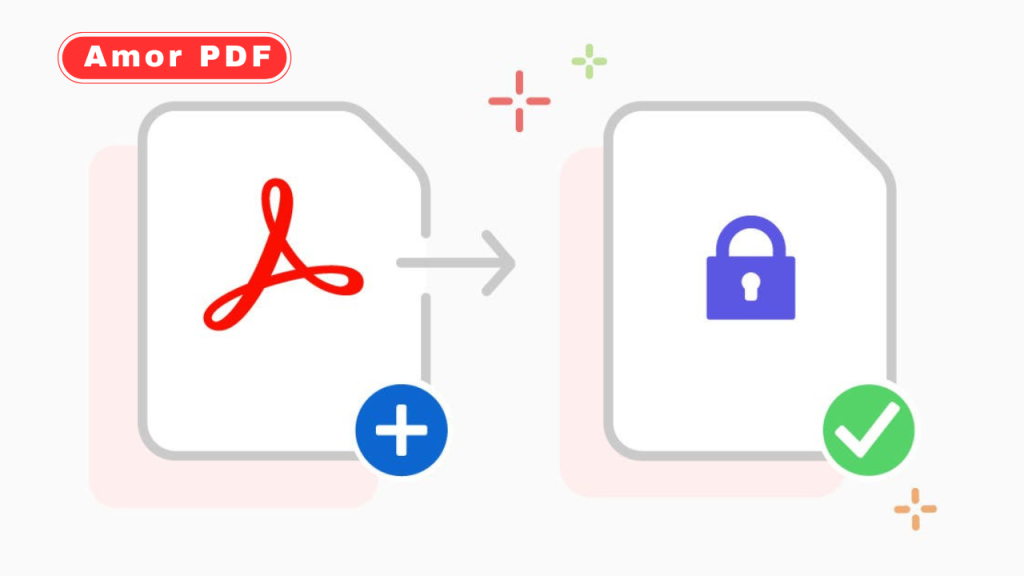
How online PDF password protection works
Online PDF protection tools use encryption standards (usually 128-bit or 256-bit AES) to scramble the contents of the file. When you upload a PDF:
- The online service reads the file in your browser session.
- It applies encryption using the password you choose.
- The file becomes protected and can only be opened with that password.
- You download the encrypted file and share it safely.
Because the encryption happens in the browser or on secure servers, the original and protected versions are processed quickly.
Key features to look for in an online PDF password protection tool
When choosing an online PDF protection tool in 2025, consider the following features:
Easy password setup
A clear interface that lets you set both opening password and permission restrictions is essential. Choose tools that avoid confusing technical terms.
Strong encryption
Look for tools that use AES-256 encryption, the industry standard for secure documents. This ensures your PDF is protected against brute force attacks.
Flexible options
The ability to set different permissions — like restricting printing, copying, or form filling — gives you more control over how your document is used.
File privacy policy
Trusted tools delete your files from servers after processing, or guarantee they are processed locally in the browser with no permanent storage.
Cross-platform compatibility
A tool that works on all devices means you can protect PDFs whether you’re on a laptop, tablet, or smartphone.
Batch processing (optional)
Some tools allow protecting multiple PDFs at once, which saves time for users handling multiple documents.
Step-by-step: How to protect a PDF with a password online
Here’s a general step-by-step process that applies to most online PDF protection tools like AmorPDF:
- Open the online tool in your browser.
- Upload your PDF file (drag & drop or file picker).
- Enter your desired password for opening the file.
- (Optional) Set permission restrictions for printing or editing.
- Click Protect PDF or similar action button.
- Download the encrypted file with password protection applied.
- Share your protected PDF securely with the intended audience.
Most online tools are intuitive and walk you through these steps without complex menus.
Using online PDF protection on different devices
One of the biggest strengths of online PDF tools is device independence. You can protect PDFs from:
- Desktops and laptops — Great for office or home use.
- Tablets — Ideal for students and mobile professionals.
- Smartphones — Perfect for quick protection on the go.
- Public or shared computers — Avoid installing software while keeping files secure.
This flexibility makes online protection tools very practical in 2025’s hybrid work and learning environments.
Security and privacy when using online tools
Security is a top concern when uploading any file online. Reputable PDF tools use HTTPS encryption to protect files during transfer. Many trusted platforms also:
- Automatically delete files after processing.
- Do not store files on their servers permanently.
- Use encryption internally so that even temporary copies are safe.
Always check the tool’s privacy policy to ensure files aren’t retained or shared.
Differences between password protection and digital signing
Password protection restricts access to a PDF file. Digital signatures, on the other hand, prove authenticity — they show who created the document and whether it has been altered.
You can combine both: apply a password to restrict access and add a digital signature to certify the file’s integrity.
When to use PDF password protection
Consider password protection when handling:
- Contracts and legal documents
- Confidential business reports
- Financial statements
- Medical or personal records
- Student transcripts and grades
- Proposal submissions and bids
- HR documents
Protecting these files ensures that sensitive information remains private and tamper-proof.
Common mistakes when protecting PDFs
Some users make typical errors:
- Choosing weak passwords — Always use strong, unique passwords.
- Reusing passwords from other accounts — This increases risk.
- Forgetting passwords — If you lose the password, opening the file may become impossible.
Use a trusted password manager to store and retrieve complex passwords safely.
Best practices for sharing password-protected PDFs
To share a protected PDF securely:
- Send the file separately from the password (e.g., email file, message password).
- Use secure communication channels for passwords (not public forums).
- Update passwords periodically, especially for business use.
Good sharing practices add an additional layer of protection.
Online PDF protection for teams and businesses
In professional environments, teams often collaborate on sensitive documents. Online tools that support:
- Multiple user roles
- Enterprise encryption standards
- Shared access logs
…are valuable in maintaining organizational security policies.
Businesses should also combine online PDF protection with broader strategies like secure cloud storage, access control policies, and encrypted email delivery.
Future trends in PDF security (2025 and beyond)
In 2025, emerging trends include:
- AI-assisted security recommendations — tools suggesting optimal protection settings.
- Integration with cloud platforms — automatic protection workflows with Google Drive, OneDrive, Dropbox.
- Biometric locks — experimental features tying access to biometric verification.
- Better automation — password setting based on document type or sensitivity.
Expect online PDF protection to become smarter and more intuitive while staying secure.
Why online tools dominate in 2025
Online tools are winning over traditional desktop software because they:
- Remove installation friction
- Work instantly on any device
- Lower entry barriers for non-technical users
- Update backend security without user action
These advantages make online PDF password protection the go-to option for fast and reliable document security.
Conclusion
In 2025, using an online PDF password protection tool is one of the easiest and most effective ways to secure sensitive documents. Password protection helps prevent unauthorized access and tampering, while online tools eliminate the need for software installation, opening the door to secure PDF handling from any device.
With the right platform, such as AmorPDF, users can quickly protect files, set specific permissions, and share documents with confidence. For deeper understanding of PDF security standards and encryption technologies, you can also explore resources from Adobe on PDF security at https://www.adobe.com.
FAQs
What is an online PDF password protection tool?
It’s a web-based service that encrypts and protects PDF files with a password directly in the browser.
Do I need to install software to protect a PDF online?
No, online tools work entirely through your web browser without downloads.
Is it safe to upload PDFs to an online protection tool?
Yes, trusted platforms use secure encryption and often delete files after processing.
Can I restrict editing or printing of a PDF?
Yes — many tools allow preset permissions that limit opening, editing, and printing.
What happens if I forget the password?
If you forget the password, you may not be able to open the protected PDF, so store passwords securely.