
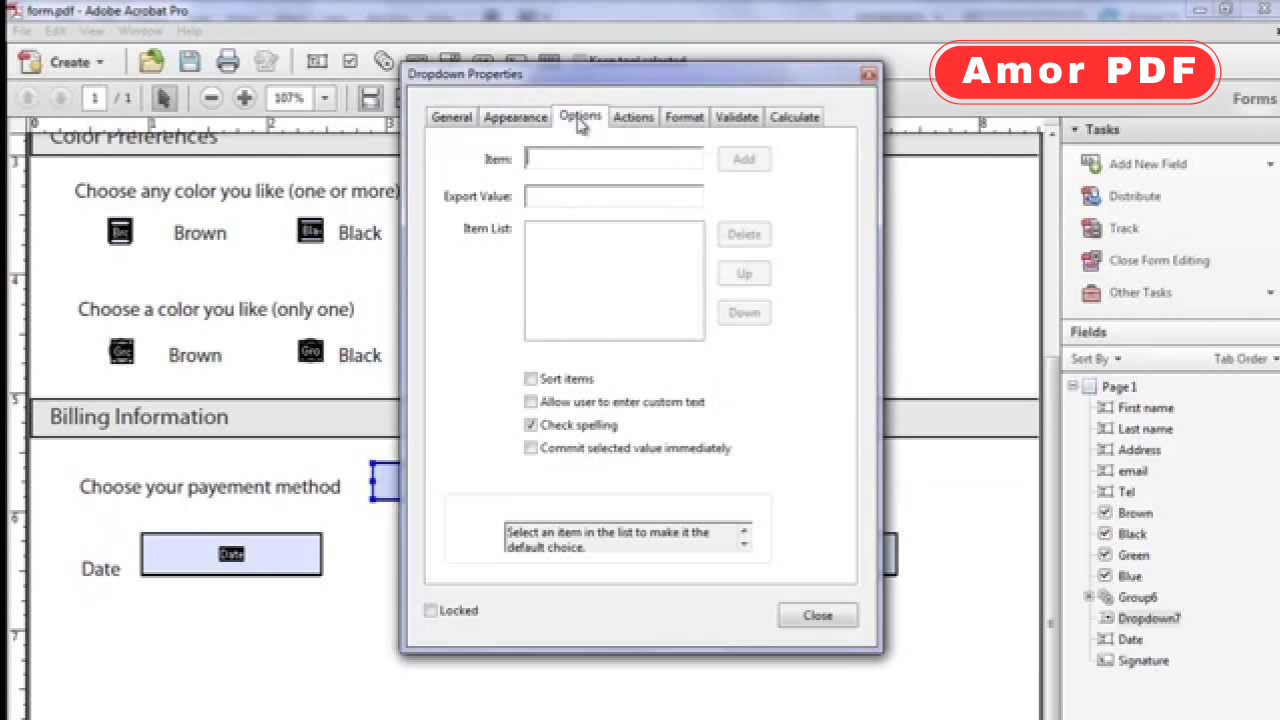
Interactive PDF forms are widely used in 2026 for applications, registrations, contracts, surveys, and official documents. Unlike static PDFs, interactive forms allow users to type directly into fields, select checkboxes, choose options from dropdown menus, and submit forms digitally without printing.
This guide explains how to fill interactive PDF forms in 2026 using modern tools and devices. Check More Here: How to Convert HTML to PDF in 2026
Whether you’re using a computer, tablet, or smartphone, you’ll learn the easiest and safest ways to complete PDF forms accurately and efficiently.
What interactive PDF forms are
Interactive PDF forms are documents that contain fillable fields. These fields can include text boxes, radio buttons, checkboxes, dropdown lists, date selectors, and digital signature areas.
They are designed to be completed digitally and often include built-in validation to ensure correct input.
Why interactive PDF forms are so common in 2026
Organizations prefer interactive PDFs because they reduce paperwork, speed up processing, and minimize errors. Users benefit from faster completion, easy editing, and the ability to submit forms online.
In 2026, interactive PDFs are standard for government services, education, healthcare, and business workflows.
How to recognize an interactive PDF form
When you open an interactive PDF, you can usually click inside text fields and type directly. Checkboxes can be selected, and dropdown menus expand when clicked.
If you cannot click or type anywhere, the PDF is likely non-interactive and requires different handling.
Filling interactive PDF forms on a computer
On a computer, interactive PDFs can be filled using modern PDF readers. Simply open the file, click on each field, and enter the required information.
Most tools automatically save your input and allow you to review the form before submission.
Filling interactive PDF forms in a web browser
In 2026, most browsers support interactive PDF forms directly. You can open the PDF in your browser, type into fields, and download the completed file.
This method is convenient for quick tasks and requires no additional software installation.
Filling interactive PDF forms on mobile devices
Smartphones and tablets make it easy to fill interactive PDFs on the go. Mobile PDF viewers allow tapping into fields, selecting options, and even signing forms with touch input.
This is especially useful for travel, remote work, and urgent document completion.
How to use auto-fill and saved data
Some PDF tools offer auto-fill features that remember frequently used information like name, address, or email.
Auto-fill speeds up form completion and reduces typing errors, especially for repetitive documents.
Editing and correcting filled form fields
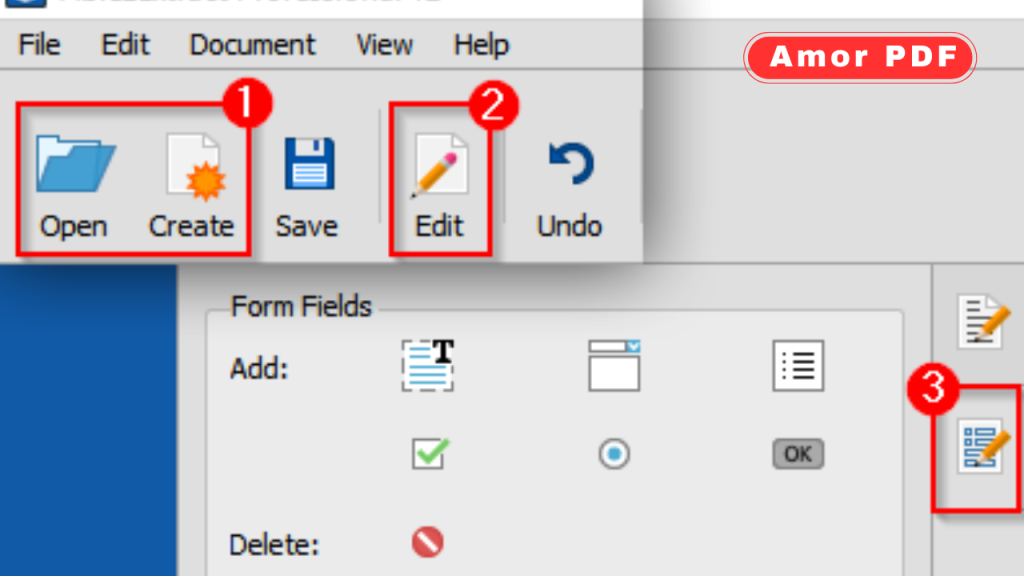
Interactive PDFs allow easy editing before submission. You can click back into a field, correct mistakes, or change selections.
Always review the form carefully before saving or submitting to ensure accuracy.
Saving a filled interactive PDF properly
After filling the form, save it using the correct option to preserve all entered data. Saving incorrectly may flatten fields or remove interactivity.
Use standard save options rather than printing to PDF unless specifically required.
Submitting interactive PDF forms
Submission methods vary depending on the form. Some PDFs include a submit button that sends the form automatically, while others require emailing or uploading the completed file.
Follow the instructions provided within the form carefully.
Adding signatures to interactive PDF forms
Many interactive PDFs include signature fields. You can add a digital signature by typing, drawing, or selecting a saved signature, depending on the tool used.
Digital signatures are widely accepted in 2026 and eliminate the need for printing.
Handling forms that don’t allow typing
If a PDF appears interactive but won’t let you type, it may be locked or require a specific viewer.
In such cases, opening the file with a different PDF reader or browser often resolves the issue.
Filling interactive PDF forms securely
When handling personal or sensitive information, use trusted tools and secure networks. Avoid uploading forms to unknown websites.
Always store completed forms in secure folders or encrypted storage.
Common mistakes to avoid when filling PDF forms
Common errors include skipping required fields, entering incorrect formats, and forgetting to save changes.
Double-check all entries and required fields before submission.
Accessibility features in interactive PDFs
Many interactive PDFs support accessibility features like keyboard navigation, screen readers, and adjustable text size.
These features ensure that forms are usable by everyone.
Why interactive PDFs are better than paper forms
Interactive PDFs save time, reduce errors, and improve organization. They also allow easy duplication, storage, and retrieval.
In 2026, digital forms are preferred over paper in most situations.
Converting filled forms to non-editable PDFs
Sometimes you may need to lock the form after filling it. Flattening the PDF converts it into a non-editable document while keeping the information visible.
This is often required for final submissions.
The future of interactive PDF forms
Interactive PDFs continue to evolve with better validation, cloud integration, and AI-assisted form completion.
These improvements make form filling faster and more reliable.
Conclusion
Filling interactive PDF forms in 2026 is simple, fast, and accessible across all devices. With built-in browser support, mobile-friendly tools, and secure digital signatures, users can complete and submit forms without printing or scanning.
By understanding how interactive fields work, saving files correctly, and using trusted tools, you can handle PDF forms confidently and efficiently. For official guidance and professional tools related to interactive PDFs, you can also explore information available on https://www.adobe.com.
FAQs
Can I fill interactive PDF forms without installing software?
Yes, most modern browsers allow filling interactive PDFs directly.
Why can’t I type in some PDF forms?
The form may be non-interactive, locked, or require a different PDF viewer.
Can I fill interactive PDF forms on my phone?
Yes, mobile devices support interactive PDF form filling.
Are digital signatures accepted on PDF forms?
Yes, digital signatures are widely accepted in 2026.
Is it safe to fill PDF forms online?
It is safe when using reputable tools and secure connections.