Scanned PDF files are common in offices, schools, and businesses, but they can be frustrating because the text inside them cannot be copied, searched, or edited.
In 2026, converting a scanned PDF to editable text is easier than ever thanks to online OCR technology that works directly in your browser. Check More Here: How to Combine Multiple PDF Files in 2026
This guide explains how to convert scanned PDF to text in 2026, what OCR is, and how to get accurate results without installing software.
What is a scanned PDF
A scanned PDF is created when a physical document is scanned using a scanner or mobile camera. Instead of real text, the PDF contains images of text.
Because of this, normal copy-paste does not work until the file is processed with OCR.
Why scanned PDFs cannot be edited directly
Scanned PDFs store text as images. Computers cannot recognize letters inside images without special processing.
That is why scanned PDFs must be converted using OCR before the text becomes editable or searchable.
What is OCR and how it works
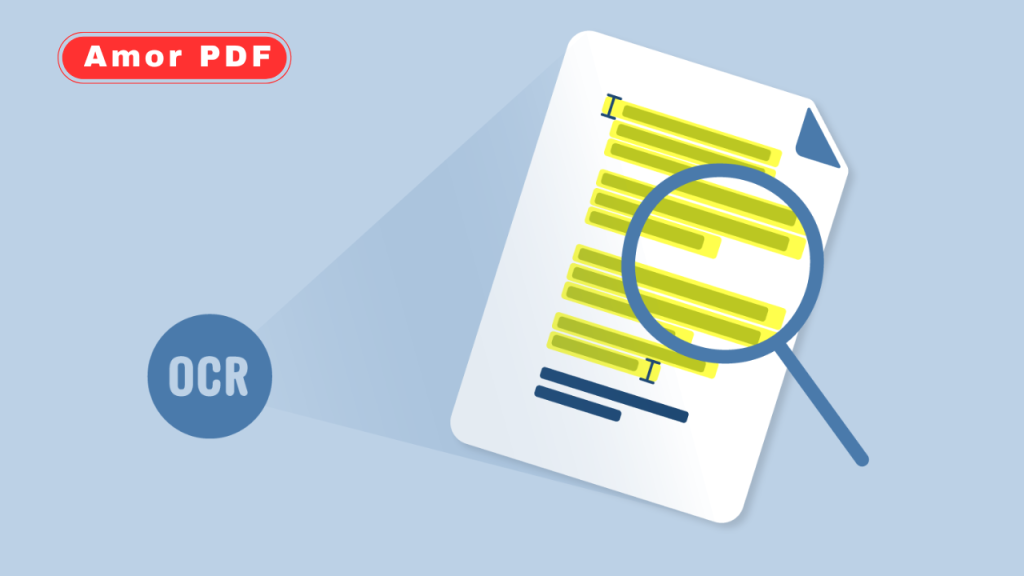
OCR stands for Optical Character Recognition. It is a technology that analyzes images and detects letters, words, and formatting.
In 2026, OCR tools are faster and more accurate thanks to AI-based recognition systems.
Benefits of converting scanned PDF to text
Converting scanned PDFs to text allows you to edit documents, copy content, search keywords, and reuse information.
It also saves time by eliminating the need to manually retype documents.
How online OCR tools work
Online OCR tools process scanned PDFs in the cloud or directly in the browser. You upload the file, select the output format, and download the extracted text.
No installation or technical knowledge is required.
Step-by-step: Convert scanned PDF to text online
First, open an online PDF OCR tool in your browser. Upload the scanned PDF file using drag and drop or file selection.
Next, choose the output format such as plain text, Word, or searchable PDF.
Start the OCR process and wait a few seconds while the tool scans and recognizes the text.
Finally, download the converted file and review the extracted text.
Converting scanned PDF to editable Word text
Many users prefer converting scanned PDFs into editable Word documents. OCR tools can preserve formatting such as paragraphs and headings.
This is ideal for editing contracts, reports, and study materials.
Converting scanned PDF to plain text
Plain text conversion removes formatting and extracts only readable text.
This option is useful for copying content, translation, or data processing.
Accuracy of OCR in 2026
OCR accuracy in 2026 is significantly improved. Clean scans with good lighting and clear fonts produce the best results.
Handwritten text may still have limitations, but printed documents are recognized very accurately.
Tips to improve OCR results
Use high-quality scans with straight alignment. Avoid blurry images and low contrast.
If possible, scan documents in black and white or grayscale for better recognition.
OCR for multi-page scanned PDFs
Online tools support multi-page scanned PDFs and can extract text from all pages at once.
This is useful for books, manuals, invoices, and legal documents.
Language support in OCR tools
Modern OCR tools support multiple languages, including English, Spanish, French, and more.
Selecting the correct language improves recognition accuracy.
Is it safe to convert scanned PDFs online
Trusted OCR platforms use encrypted connections and automatically delete files after processing.
Always choose reputable tools and avoid uploading sensitive documents to unknown websites.
When to use OCR instead of manual typing
OCR saves time when working with long documents or large batches of files.
Manual typing should only be used for small corrections after OCR processing.
Common mistakes to avoid
Uploading very low-quality scans reduces OCR accuracy.
Running OCR multiple times on the same file can also cause formatting issues.
Why AmorPDF is ideal for scanned PDF conversion
AmorPDF provides a simple, fast, and browser-based solution for converting scanned PDFs to text.
The tool is designed for users who want accurate OCR results without installing software.
Future of OCR technology
OCR technology continues to improve with AI and machine learning.
In the future, OCR will handle handwriting, complex layouts, and multilingual documents even better.
Conclusion
Converting scanned PDFs to text in 2026 is fast, accurate, and accessible using online OCR tools. With no software installation required, users can quickly turn scanned documents into editable and searchable text.
By using trusted platforms and high-quality scans, OCR delivers reliable results for work, study, and business needs. For official insights into OCR and PDF technologies, you can explore resources from Adobe at https://www.adobe.com.
FAQs
What is the best way to convert scanned PDF to text?
Using an online OCR tool is the fastest and easiest method.
Can I convert scanned PDFs for free?
Yes, many online tools offer free OCR conversion.
Is OCR accurate for scanned documents?
Yes, especially for clean printed text in high-quality scans.
Do I need to install software for OCR?
No, online OCR tools work directly in the browser.
Can OCR convert handwritten text?
Some tools support handwriting, but accuracy may vary.