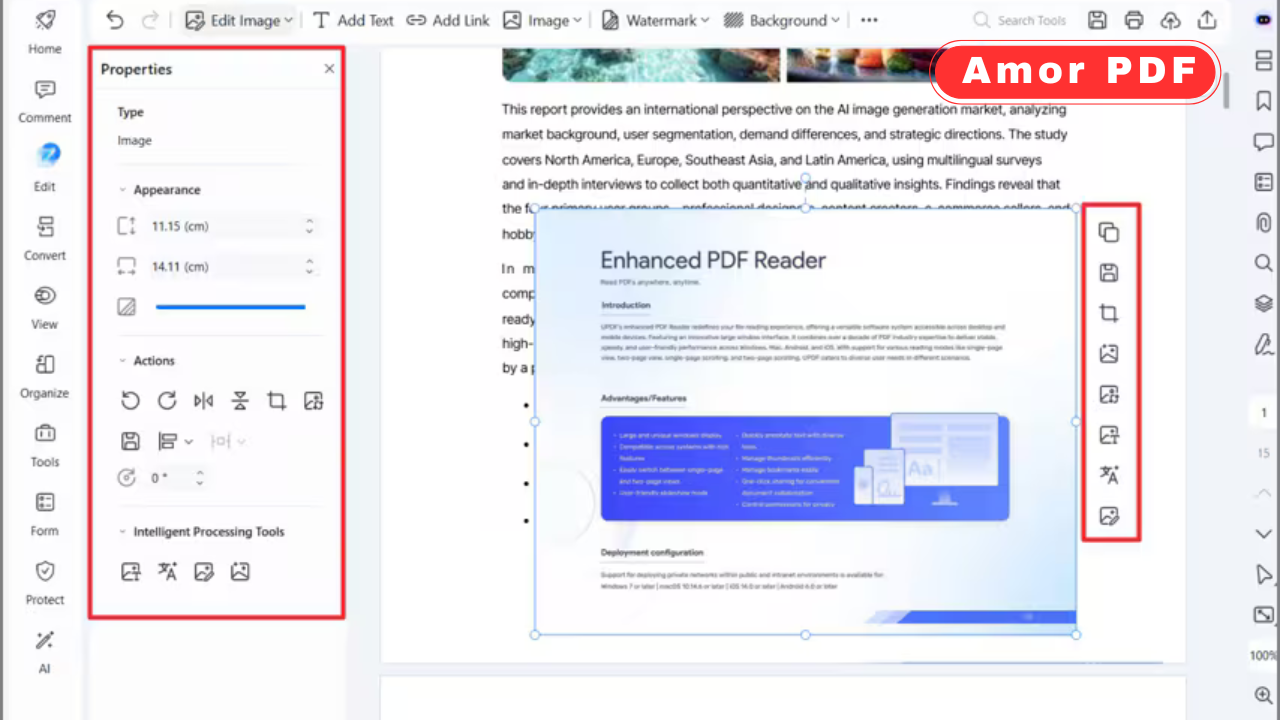
Adding images to a PDF is one of the most common document editing tasks in 2026. Whether you need to insert a company logo, signature image, product photo, chart, or scanned document, modern online tools make the process quick and accessible from any device.
This guide explains how to insert images into PDF online in 2026 safely and efficiently, while maintaining quality and document formatting. Check More Here: How to Change PDF File Name Metadata in 2026
Why insert images into a PDF
People insert images into PDFs for many reasons:
Adding signatures
Inserting logos or branding
Including charts or screenshots
Updating reports
Attaching visual evidence
Enhancing presentations
Images help improve clarity, professionalism, and visual communication.
Can you edit a PDF directly online
Yes. In 2026, many web-based PDF editors allow you to modify existing PDFs without downloading software. You can upload a file, edit it in your browser, and download the updated version.
Online PDF editing has become faster and more secure.
Basic steps to insert an image into a PDF online
The general process is simple:
Upload the PDF
Choose the “Add Image” option
Select your image file
Position and resize the image
Save and download the updated PDF
Most platforms follow this same structure.
Choosing the right image format
Common image formats supported in 2026 include:
JPG
PNG
WEBP
SVG
PNG is ideal for transparency, while JPG works well for photos.
Maintaining image quality in the PDF
To preserve quality:
Use high-resolution images
Avoid excessive resizing
Choose high-quality export settings
Poor-quality images can appear blurry after insertion.
Positioning images accurately
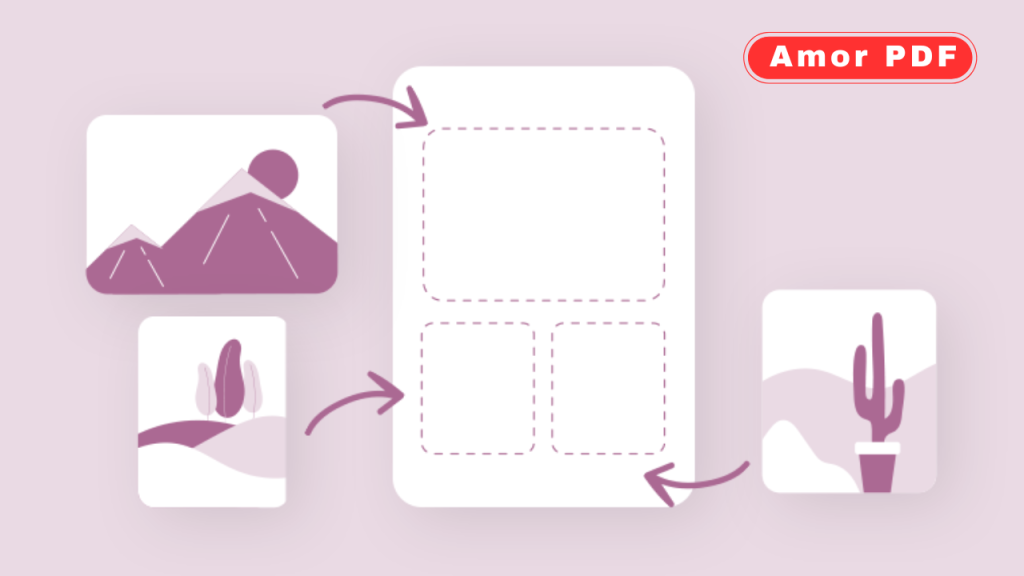
Online editors allow you to drag and drop images anywhere on the page. You can adjust size, alignment, and layering.
Zooming in while positioning improves precision.
Inserting images into specific pages
Most PDF editors let you choose which page to modify. If your document has multiple pages, ensure you select the correct one before adding the image.
Double-check page numbers before saving.
Adding transparent logos or watermarks
If you’re inserting a logo, using a transparent PNG ensures a cleaner appearance.
Watermark-style images can be adjusted in opacity for subtle branding.
Inserting scanned signatures into PDFs
One common use case is inserting a scanned signature. After uploading your signature image, place it in the correct signature field area.
Flatten the document afterward if needed.
Editing PDFs without distorting layout
Choose tools that preserve the original formatting. Some low-quality editors may shift text or spacing.
Always preview the final document before downloading.
Using mobile devices to insert images
In 2026, mobile browsers and apps allow full PDF editing. You can upload a PDF from cloud storage and insert images directly from your phone gallery.
Mobile editing is convenient for quick updates.
Security considerations when editing PDFs online
Before uploading a PDF:
Ensure the website uses secure encryption
Avoid unknown or suspicious platforms
Do not upload highly sensitive documents unless necessary
For confidential files, offline editing may be safer.
Saving the updated PDF properly
After inserting the image, always save and download the new version. Some platforms require clicking a final “Export” button to apply changes.
Verify the image appears correctly before sharing.
Flattening the PDF after inserting images
If you want to prevent editing, flatten the PDF after inserting images. This converts added elements into permanent content.
Flattening is useful for official submissions.
Reducing file size after adding images
Images can increase file size. After inserting images, you may compress the PDF to keep it email-friendly.
Optimized export settings help manage file size.
Batch inserting images into multiple PDFs
Some advanced online tools support batch processing. This is helpful when adding the same logo or watermark to multiple documents.
Batch editing saves time in professional workflows.
Why online PDF editing is popular in 2026
Web-based tools eliminate installation requirements and work across devices.
They are especially useful for students, freelancers, and remote professionals.
Common mistakes to avoid
Uploading low-resolution images
Forgetting to save changes
Misplacing images over important text
Using insecure platforms
Ignoring final preview
Avoiding these mistakes ensures a professional result.
Benefits of inserting images into PDFs
Adding images improves:
Visual communication
Brand consistency
Document clarity
Professional presentation
It transforms simple documents into polished materials.
Conclusion
Inserting images into a PDF online in 2026 is fast, accessible, and user-friendly thanks to modern web-based editing tools. By uploading your document, positioning high-quality images carefully, and saving the final version correctly, you can enhance your PDF without disrupting formatting.
Always verify placement and consider flattening the file if needed. For professional PDF editing tools and official documentation resources, you can also explore information available at https://www.adobe.com.
FAQs
Can I insert images into a PDF without installing software?
Yes, many online tools allow direct editing in your browser.
Will adding images increase PDF size?
Yes, especially if images are high resolution.
Is it safe to edit PDFs online?
It is safe when using trusted, secure platforms.
Can I insert images on mobile devices?
Yes, most modern tools support mobile editing.
Should I flatten the PDF after inserting images?
Yes, if you want to prevent further editing.