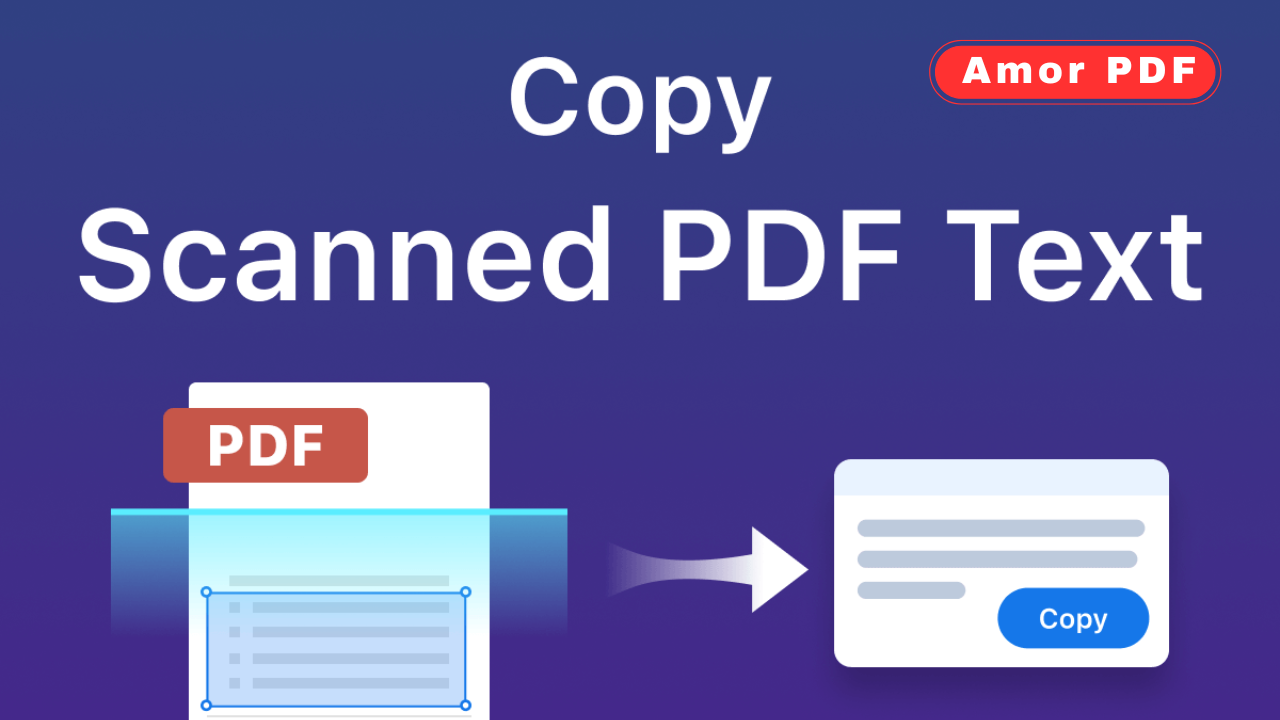
Scanned PDFs are still widely used in 2026 for contracts, invoices, books, academic papers, and official documents. Unlike normal PDFs, scanned files are essentially images, which means you cannot select, copy, or search text directly.
To extract text from a scanned PDF, you need Optical Character Recognition, commonly known as OCR. Check More Here: How to Reduce PDF Size for Email in 2026
This guide explains how to extract text from scanned PDFs in 2026 using modern OCR methods, tools, and best practices to achieve accurate and usable results.
What a scanned PDF actually is
A scanned PDF is created when physical documents are scanned and saved as images inside a PDF file. Each page is an image rather than editable text.
Because of this, standard copy-paste does not work unless OCR is applied.
Why OCR is required for scanned PDFs
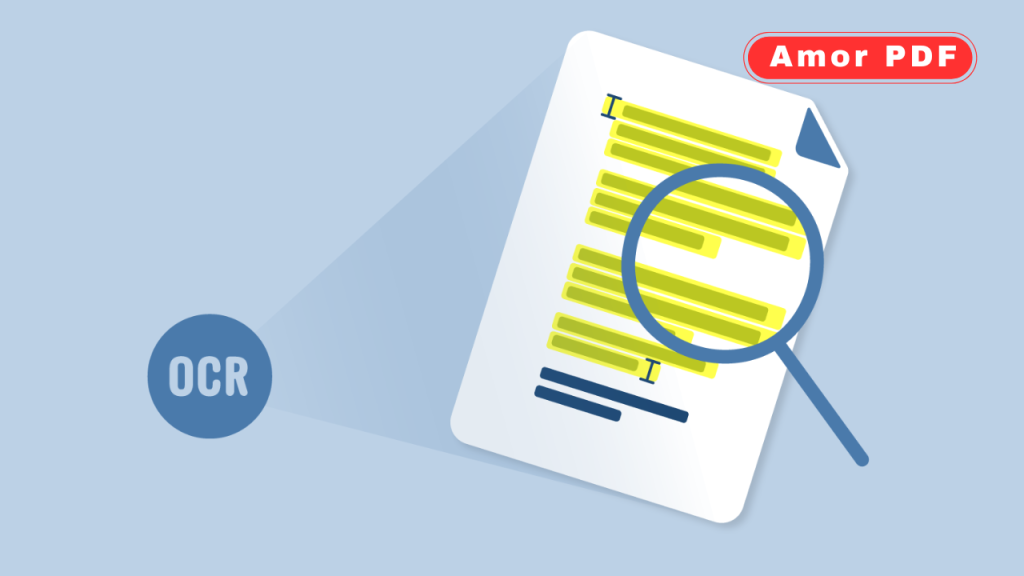
OCR technology analyzes the images in a scanned PDF and converts visible characters into digital text. Without OCR, the document remains uneditable and unsearchable.
Modern OCR in 2026 is much more accurate than earlier versions, even with complex layouts.
When you should extract text from scanned PDFs
Text extraction is useful when you need to:
Edit scanned documents
Copy content for reports or research
Search within scanned files
Translate text
Reuse old printed material digitally
OCR turns static scans into usable documents.
Extracting text using online OCR tools
Online OCR tools are one of the fastest ways to extract text. You upload the scanned PDF, the tool processes it, and you download the extracted text or editable file.
These tools work directly in the browser and require no installation.
Choosing the right language for OCR
OCR accuracy depends heavily on selecting the correct language. Most tools allow you to choose the document language before processing.
Using the correct language improves recognition and reduces errors.
Extracting text using desktop PDF software
Many modern PDF applications include built-in OCR features. These tools process scanned PDFs locally on your device.
This method is ideal for sensitive documents that should not be uploaded online.
Using OCR on mobile devices
In 2026, smartphones and tablets support OCR through mobile apps. You can scan documents directly and extract text instantly.
Mobile OCR is useful for quick tasks and on-the-go document handling.
Improving OCR accuracy before extraction
OCR works best with clear scans. If the scanned PDF is blurry or tilted, accuracy may drop.
Ensuring straight pages, good contrast, and readable text improves results significantly.
Handling handwritten text in scanned PDFs
Handwritten text is harder to recognize than printed text. While OCR has improved, accuracy still varies depending on handwriting clarity.
Printed text generally produces much better extraction results.
Extracting text from scanned PDFs with tables
Tables require more advanced OCR. Some tools preserve table structure, while others extract text line by line.
Review extracted data carefully if the document contains tables or forms.
Editing extracted text after OCR
After extraction, text may contain minor errors. Proofreading and correcting mistakes ensures accuracy.
OCR is powerful, but human review is still important.
Saving extracted text in different formats
Extracted text can usually be saved as:
Editable PDF
Word document
Plain text
Searchable PDF
Choosing the right format depends on your next use.
Making scanned PDFs searchable
Instead of extracting text separately, you can convert scanned PDFs into searchable PDFs. This keeps the original layout while adding a hidden text layer.
Searchable PDFs are ideal for archiving.
Extracting text from large scanned PDFs
For long documents, batch OCR tools save time. These tools process multiple pages efficiently.
Ensure your system has enough resources for large files.
Security considerations when using OCR tools
Avoid uploading confidential documents to unknown websites. Use reputable tools with clear privacy policies.
For sensitive data, offline OCR is safer.
Free vs paid OCR tools in 2026
Free OCR tools work well for basic tasks. Paid tools offer higher accuracy, batch processing, layout retention, and language support.
For occasional use, free tools are usually sufficient.
Common OCR errors and how to fix them
Typical errors include misread characters, broken words, and formatting issues.
Manual correction and re-scanning with better quality often resolves these issues.
OCR trends in 2026
In 2026, OCR uses AI to recognize complex layouts, multiple languages, and low-quality scans more accurately than before.
This makes text extraction faster and more reliable.
Why OCR is essential for digital productivity
OCR bridges the gap between paper and digital workflows. It allows old documents to become searchable, editable, and reusable.
This saves time and reduces manual data entry.
Conclusion
Extracting text from scanned PDFs in 2026 is simple and effective thanks to advanced OCR technology. Whether you use online tools, desktop software, or mobile apps, OCR transforms scanned images into editable and searchable text. By choosing the correct language, ensuring scan quality, and reviewing results, you can achieve highly accurate extraction. For professional OCR tools and official guidance on PDF text recognition, you can also explore information available at https://www.adobe.com.
FAQs
Can I extract text from a scanned PDF for free?
Yes, many online and desktop tools offer free OCR features.
Why can’t I copy text from my scanned PDF?
Because scanned PDFs contain images, not actual text.
Is OCR accurate in 2026?
Yes, accuracy has improved greatly, especially for printed text.
Can OCR recognize multiple languages?
Yes, most modern OCR tools support multiple languages.
Is it safe to upload scanned PDFs online for OCR?
It is safe with trusted tools, but avoid uploading sensitive documents.