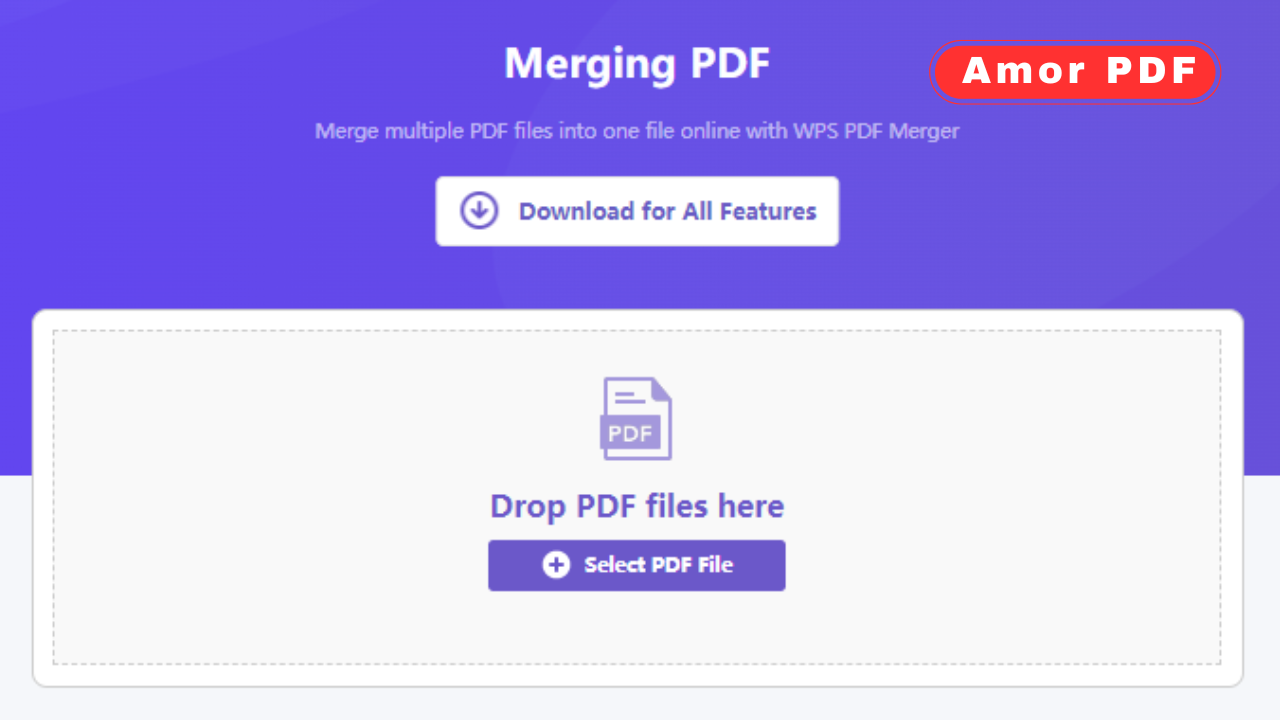
Merging multiple PDF files into one cohesive document is essential for professionals managing reports, contracts, presentations, and research materials. Whether you’re combining quarterly reports, consolidating scanned documents, or organizing project files, knowing how to merge PDFs efficiently saves enormous amounts of time and keeps your digital workspace organized.
In 2026, you have more options than ever for PDF merging. From completely free online tools requiring no signup to professional desktop software with advanced features, this comprehensive guide walks you through every method available. We’ll compare speed, quality, security, and ease of use across all major platforms.
Why Merge PDF Files? Real-World Business Applications
Document Consolidation: Businesses frequently combine multiple reports into single comprehensive documents. Monthly reports, quarterly analyses, annual summaries—merging these creates master documents for easy reference and archival.
Research & Academia: PhD students merge academic papers, research findings, and supplementary materials into unified dissertations. Researchers compile findings across multiple documents for publication-ready manuscripts.
Legal & Compliance: Law firms merge contracts, amendments, addendums, and supporting documents into case files. Compliance teams consolidate audit reports, certifications, and regulatory documents.
Project Management: Project managers merge status reports, meeting notes, deliverables, and communications into comprehensive project archives for future reference.
Real Estate: Agents consolidate property listings, inspection reports, appraisals, and contracts into complete property packages for clients.
What Makes a Good PDF Merging Solution?
Speed: Online tools vary dramatically in speed. Some process files in seconds while others take minutes. For large-scale operations, speed becomes critical.
Quality Preservation: The best tools maintain original document formatting, colors, fonts, and layout exactly as they appeared in source files. Poor tools introduce artifacts or quality loss.
File Size Management: Good tools optimize file sizes without quality loss. Some tools compress PDFs during merging, reducing file sizes by 30-50%.
Security: Professional tools offer encryption, password protection, and secure deletion. Your merged documents may contain sensitive information requiring protection.
User Interface: Intuitive tools require no learning curve. Drag-and-drop functionality, clear step-by-step instructions, and helpful error messages matter.
Method 1 – Free Online PDF Merger (Recommended for Most Users)
Fastest and easiest method for occasional use. No software installation, no signup, no cost.
STEP 1: Choose Your Online Tool
Access AmorPDF.com or other free PDF merger services. No registration required.
STEP 2: Upload Your PDFs
Click “Upload Files” or drag-and-drop PDFs directly. Upload up to 10 files simultaneously (limits vary by tool).
STEP 3: Arrange File Order
Preview thumbnails of all files. Drag files to reorder them. Remove unwanted files. Preview shows exactly how merged document will appear.
STEP 4: Merge Documents
Click “Merge PDFs” button. Processing occurs on servers (typically 10-60 seconds depending on file size).
STEP 5: Download Your Merged PDF
Download button appears after processing. File downloads to your default folder immediately.
TIME: 2-5 minutes total | COST: Completely free | BEST FOR: Occasional users, small file groups
Method 2 – Adobe Acrobat Pro (Professional Standard)
Professional-grade solution with extensive features. Monthly subscription required.
STEP 1: Open Adobe Acrobat Pro
Launch application on Windows or Mac. Sign in with Adobe account.
STEP 2: Select “Combine Files”
Menu > Tools > Combine Files. Or File > New > Combine PDF.
STEP 3: Add Your PDF Files
Click “Add Files” or drag PDFs into interface. Select all PDFs you want to merge.
STEP 4: Arrange & Organize
Drag files into desired order. Remove unwanted files. Reorder pages if needed.
STEP 5: Combine
Click “Combine Files” button. Processing begins (typically 30 seconds-2 minutes for large files).
STEP 6: Review & Save
Preview combined document. Adjust if needed. Save with desired filename and location.
TIME: 5-15 minutes | COST: $14.99/month | BEST FOR: Daily professional users, complex requirements
Method 3 – Mac Built-in Preview App (Mac Users Only)
Free solution built into every Mac. No installation required.
STEP 1: Open Preview
Applications > Preview. Or search “Preview” in Spotlight.
STEP 2: Open First PDF
File > Open. Select your first PDF file.
STEP 3: Show Sidebar
View > Sidebar or press Cmd + Shift + D. Shows page thumbnails.
STEP 4: Drag Files into Sidebar
Drag additional PDF files directly into sidebar thumbnail view. Files automatically add to document.
STEP 5: Reorder Pages
Drag thumbnails to reorder pages. Arrange files in desired sequence.
STEP 6: Export as PDF
File > Export as PDF. Choose filename and location. Save combined document.
TIME: 3-8 minutes | COST: Free (built-in) | BEST FOR: Mac users, simple merging
Comparing PDF Merging Methods
Online Free Tool: Free, Fast, Excellent Quality, Basic Features, Very Easy
Adobe Pro: $180/year, Medium Speed, Professional Quality, Advanced Features, Medium Difficulty
Mac Preview: Free, Fast, Excellent Quality, Basic Features, Easy
Windows Print: Free, Slow, Good Quality, No Features, Complex
Security & Privacy Considerations
Encryption: If merging documents containing sensitive information, ensure files encrypted during transfer and storage.
Password Protection: Consider password-protecting merged documents containing confidential information.
Server Deletion: For cloud-based tools, verify files deleted from servers immediately after download.
Local Processing: Tools processing files on your computer (like Mac Preview) offer maximum privacy—files never leave your device.
Compliance: For regulated industries (healthcare, finance, legal), ensure your merging method meets compliance requirements.
Common PDF Merging Problems & Solutions
PROBLEM: PDF merge failed or incomplete
SOLUTION: Try smaller batches. Check file integrity. Use PDF compression to reduce file size before merging.
PROBLEM: File size too large after merging
SOLUTION: Use compression tool before merging. PDF tools can reduce file size 30-70% without quality loss.
PROBLEM: Pages appear in wrong order
SOLUTION: Redo merge with files arranged correctly. Most tools let you preview and reorder before finalizing.
PROBLEM: Some pages missing from merged PDF
SOLUTION: Check source files aren’t corrupted. Verify all files uploaded successfully.
PROBLEM: Fonts or colors changed
SOLUTION: Some tools don’t preserve fonts perfectly. Use professional tool (Adobe) for quality-critical documents. Edit PDF online to fix formatting if needed.
Best Practices for PDF Merging
Organize First: Sort files before merging. Arrange in logical order. Remove unnecessary files. This prevents rework.
Backup Originals: Always keep copies of original PDFs. In case merged version has issues, originals remain safe.
Preview Before Finalizing: Most tools let you preview merged document. Always review before saving final version.
Name Descriptively: Use clear naming conventions for merged files. Include date, content type, version number if appropriate.
Verify Content: After merging, scroll through entire document. Ensure all pages present. Check page order. Verify formatting correct.
Conclusion
Merging PDF files is essential modern business skill. Whether using free online tools for occasional merging or professional software for daily operations, you now have complete knowledge of every available method.
Choose based on your needs: free online tools for simplicity, Adobe for professional features, built-in OS tools for convenience. Every method works perfectly for its intended use case.
Get started merging your PDFs today using AmorPDF’s free PDF merger. No signup required, completely free, completely private. Your documents stay on your device. Start merging now.
FAQ
Q: Can I merge PDFs from different sources?
A: Yes. Merge PDFs from email, downloads, scans, or any source. Format doesn’t matter—as long as file is valid PDF, it can be merged.
Q: Will merged PDF be editable?
A: Yes, merged PDF remains editable in PDF editor tools (like online PDF editor). Editability depends on original PDF restrictions, not merging.
Q: Can I merge encrypted PDFs?
A: You must remove encryption (decrypt) first, then merge. PDF security tools can help with this.
Q: Is merging PDFs safe?
A: Completely safe. Merging simply combines files—doesn’t modify or damage content. Original files remain unchanged.
Q: Can I undo a merge?
A: Not directly. Always keep backup copies of original PDFs before merging.
Q: What’s maximum file size I can merge?
A: Depends on tool. Online tools: 200MB-1GB typically. Desktop: Limited by storage/RAM. Adobe: Up to 2GB per operation.
Resources & Further Reading
Learn more about Adobe Acrobat, Smallpdf, ilovepdf. Join communities like Reddit PDF Community and watch YouTube tutorials. Also explore how to compress PDFs, how to split PDFs, and AmorPDF free PDF tools.